
Choose GIF & Video or Photo
Start with one short video or GIF, or switch to Photo, then upload a clear source that you own or have permission to edit.
Use this multiple face swap video tool with one authorized video or GIF. Detect faces, map replacement photos, or switch to Photo for group pictures.
Multiple face swap for GIF & video · Map each detected face separately
Or try a sample GIF or video
 Sample GIF
Explore selected public face swap creations.
How it works
01 — 03
Start with one short video or GIF, or switch to Photo, then upload a clear source that you own or have permission to edit.
Add authorized replacement photos to the detected people you want to change. Unmapped faces stay unchanged.
Confirm permission, start the task, preview the completed result, and download the video, GIF, or photo.
Face Mapping
For multiple face swap video, GIF, and photo tasks, face detection and explicit replacement mapping make it clear who changes, which faces stay untouched, and which authorized photos are used.
The workflow identifies source faces before you assign replacement photos.
Map only the detected people you want to replace; faces without a mapping remain untouched.
Video, GIF, and Photo share the same multiple-face route, task states, history, and permission checks.
Video, GIF & Photo Inputs
Use one multiple face swap workflow for a short video or GIF, or switch to Photo for group pictures without leaving the page.
GIF & VideoUse GIF & Video mode to map several detected faces across one short authorized clip or animation.
 Photo
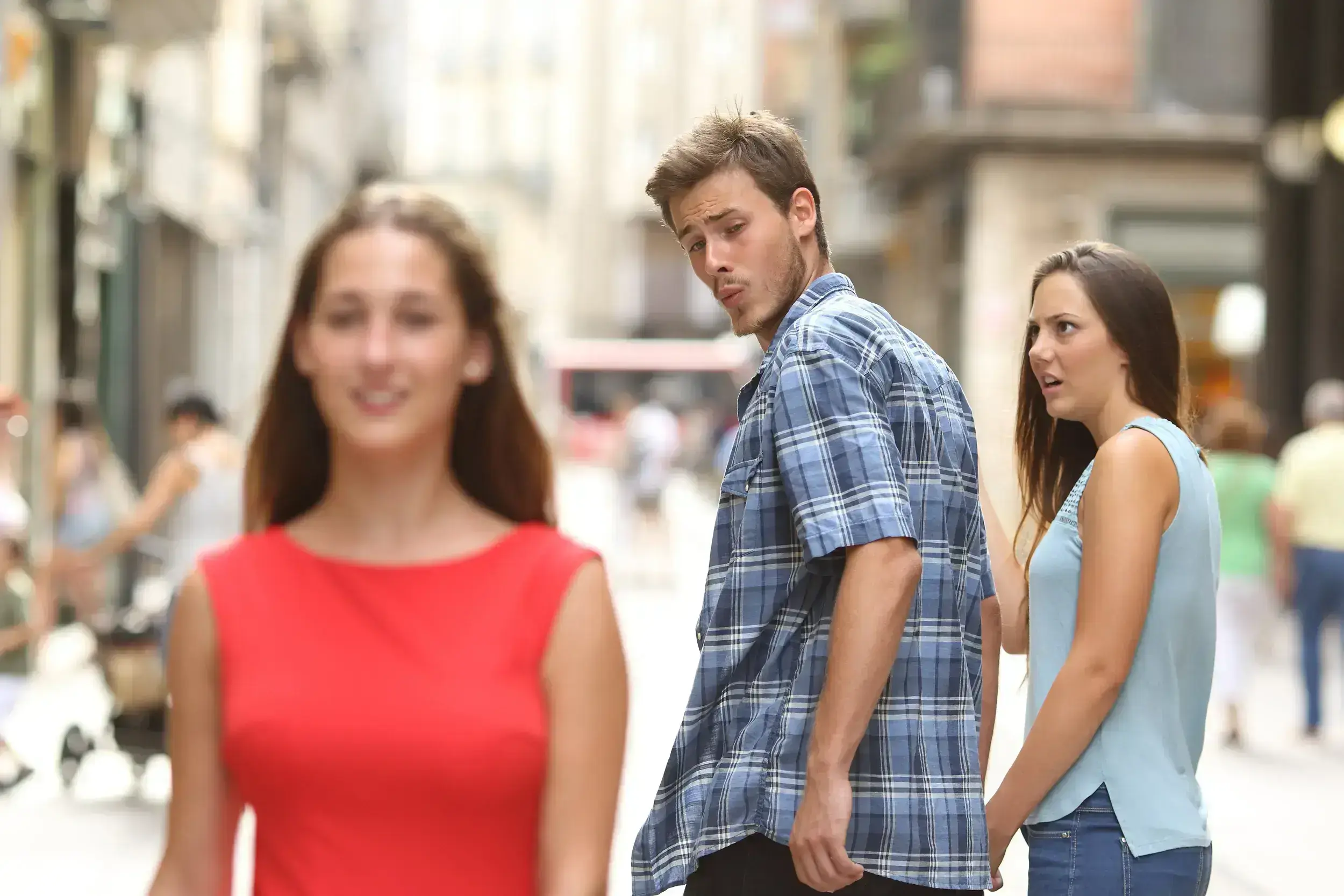
PhotoSwitch to Photo so every detected face and replacement assignment stays visible before generation.
Quick answers
What to know about media selection, face mapping, results, and responsible use.
It means replacing more than one detected face inside one source video, GIF, or photo. It does not mean processing multiple source files.
Yes. Use GIF & Video mode, upload one authorized short GIF or video, then map replacement photos to the detected people you want to change.
Yes. Only mapped faces are submitted for replacement; detected faces without a mapping stay unchanged.
The tool detects source faces first and gives each one a mapping row. Add a clear authorized face photo to each row you want to replace.
No. Multiple face swap changes several faces inside one source. Batch face swap prepares multiple source files or repeated tasks.
The uploader shows the current GIF & Video or Photo formats, file size, duration, and face limits before generation.
Yes. Only use source media and replacement faces that you own or have permission to edit.
Single-face tools
Choose the single-face workflow that matches your current media.